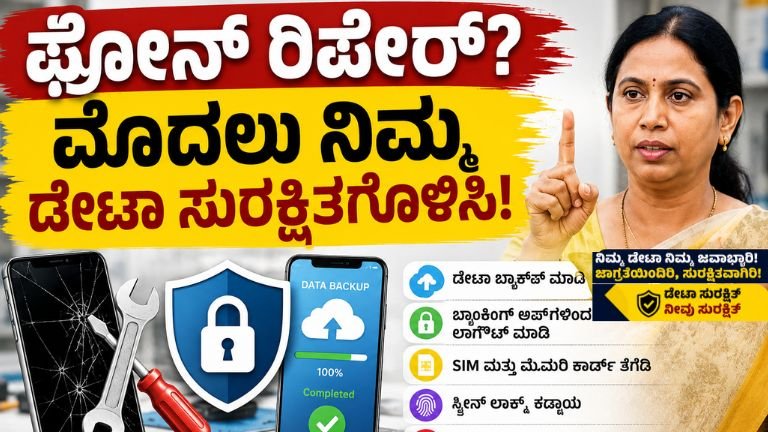
Phone Repair? Protect Your Data First! A Complete Guide to Keeping Your Personal Information Safe
Sending your smartphone for repair? Learn how to protect your personal data before handing over your device. Follow these essential steps to secure photos, banking apps, passwords, and sensitive information.
Phone Repair? Protect Your Data First!
Smartphones have become an essential part of everyday life. From banking and shopping to social media, work documents, and personal memories, almost everything is stored on our phones. When a phone develops a hardware or software problem, many people immediately take it to a repair center without thinking about the security of the data stored on the device.
Handing your phone to a technician without preparing it properly can expose sensitive information such as passwords, private photos, financial details, emails, and personal documents. Whether you are visiting an authorized service center or a local repair shop, protecting your data should always be your first priority.
This guide explains why data protection is important before phone repair and provides practical steps to secure your personal information.
Why Data Security Matters Before Phone Repair
A smartphone often contains:
- Personal photographs and videos
- Banking applications
- Credit or debit card information
- Email accounts
- Social media accounts
- Business documents
- Identity documents
- Contacts and messages
- Saved passwords
- Cloud storage access
If these details fall into the wrong hands, they could be misused, leading to financial loss or identity theft.
Step 1: Create a Complete Backup
Before giving your phone for repair, back up all important data.
You should back up:
- Photos
- Videos
- Contacts
- Messages
- Documents
- App data (where supported)
- Notes
- Calendar events
A backup ensures you do not lose valuable information if the device needs to be reset or replaced.
Step 2: Sync Your Cloud Account
Ensure your cloud storage is up to date.
Check that:
- Photos are uploaded.
- Contacts are synchronized.
- Files are backed up.
- Notes are synced.
- Calendar entries are updated.
Verify that the backup has completed successfully before handing over the device.
Step 3: Remove SIM Card
Remove your SIM card unless the repair specifically requires it.
This protects:
- Calls
- SMS messages
- OTP verification
- Mobile banking authentication
Keep the SIM card with you until the repair is completed.
Step 4: Remove the Memory Card
If your phone has a microSD card, remove it before repair.
Memory cards often contain:
- Family photos
- Videos
- Documents
- Downloaded files
Keeping the card with you adds another layer of security.
Step 5: Log Out of Banking Apps
Financial applications contain highly sensitive information.
Before repair:
- Log out of banking apps.
- Log out of payment wallets.
- Remove saved payment methods if necessary.
- Disable automatic login where possible.
This reduces the risk of unauthorized access.
Step 6: Sign Out of Important Accounts
Log out of accounts such as:
- Social media
- Shopping apps
- Cloud storage
- Office applications
Signing out prevents someone from accessing your personal information if the phone is unlocked.
Step 7: Disable Saved Passwords
Many browsers automatically save passwords.
Before repair:
- Remove saved passwords if practical.
- Disable autofill features.
- Turn off password synchronization temporarily if needed.
Step 8: Enable Screen Lock
Always secure your phone with:
- PIN
- Password
- Fingerprint
- Face Unlock
Avoid using simple PINs such as:
- 1234
- 0000
- 1111
- Birth year
Choose a strong passcode to protect your device.
Step 9: Use Repair Mode (If Available)
Many modern smartphones include a Repair Mode or Maintenance Mode, which temporarily hides personal data while allowing technicians to test the device.
If your phone supports this feature:
- Enable it before handing over the phone.
- Disable it after the repair is complete.
This is one of the safest options for protecting your privacy during repairs.
Step 10: Encrypt Your Device
Most modern smartphones support device encryption.
Encryption protects stored data even if someone attempts unauthorized access.
Check that encryption is enabled in your phone’s security settings.
Step 11: Remove Sensitive Files
If possible, temporarily remove:
- Personal documents
- Passport copies
- Aadhaar or identity documents
- Tax records
- Confidential work files
- Medical records
Store them securely in cloud storage or on a trusted computer.
Step 12: Record Your Phone’s Condition
Before submitting the phone:
- Take clear photos of the device.
- Record any scratches or damage.
- Note the IMEI number.
- Save the repair receipt.
This helps resolve disputes if new damage occurs during repair.
Step 13: Remove Accessories
Before giving your phone for repair, remove:
- Phone case
- SIM card
- Memory card
- Screen protector (only if required)
- Personal stickers or attachments
Keep all accessories safely with you.
Step 14: Visit an Authorized Repair Center
Whenever possible, choose an authorized service center.
Benefits include:
- Genuine replacement parts
- Trained technicians
- Warranty protection
- Standard repair procedures
- Better customer support
Step 15: Ask About Data Privacy
Before leaving your phone, ask the technician:
- Will the phone be reset?
- Will my data remain intact?
- Is Repair Mode supported?
- Will any software updates be installed?
- Is my data protected during testing?
Understanding the repair process helps you prepare appropriately.
Common Mistakes to Avoid
Many users unknowingly expose their personal information.
Avoid these mistakes:
- Handing over an unlocked phone without need.
- Leaving your SIM card inside.
- Forgetting to back up important data.
- Sharing your device PIN unnecessarily.
- Ignoring cloud backup status.
- Leaving banking apps signed in.
- Not removing memory cards.
- Using unauthorized repair shops without checking their reputation.
What to Do After Getting Your Phone Back
Once your phone is returned:
- Check that the repair was completed successfully.
- Verify that your data is intact.
- Review your account logins.
- Change important passwords if you had to share your unlock code.
- Reinsert your SIM and memory card.
- Test cameras, speakers, charging, and network connectivity.
- Disable Repair Mode if you enabled it.
Before handing your phone to a service center, make sure your personal data is safe!
I created a complete guide on how to use Maintenance Mode / Second Space / System Cloner / Guest Mode for all major brands like Samsung, Redmi, OnePlus, Realme, iPhone & more.
🛠 Follow these steps and stay tension-free during phone repairs!
📩 Download the full guide now
Tips for Better Smartphone Security
To keep your device secure in the long term:
- Regularly update your operating system.
- Install apps only from trusted sources.
- Enable two-factor authentication.
- Use strong, unique passwords.
- Avoid connecting to unsecured public Wi-Fi.
- Keep automatic backups enabled.
- Review app permissions periodically.
Frequently Asked Questions (FAQs)
Should I factory reset my phone before repair?
If the repair does not require access to your personal data and you have a complete backup, a factory reset offers the highest level of privacy. However, for some repairs, technicians may need the device configured for testing, so check with the service center first.
Is it safe to leave my SIM card in the phone?
It is generally safer to remove your SIM card unless the repair specifically requires it.
What is Repair Mode?
Repair Mode is a feature available on some smartphones that restricts access to your personal data while allowing technicians to test essential device functions.
Can technicians access my photos?
If your phone is unlocked and no privacy protections are enabled, technicians could potentially access personal content. Using Repair Mode, a strong screen lock, or removing sensitive data helps reduce this risk.
Your smartphone contains some of your most valuable personal information, so protecting that data should be a priority before any repair. By creating a backup, removing your SIM and memory card, signing out of sensitive accounts, enabling available privacy features such as Repair Mode, and choosing a trusted repair center, you can greatly reduce the risk of unauthorized access to your information.